
Why Is My Inspiron 15 Xcmrd Battery Not Charging?
Why Is My Inspiron 15 Xcmrd Battery Not Charging? This question often begins with a simple scene: the adapter is connected, the charging light is dark, and Windows reports “plugged in, not charging.” The fault may involve the charger, DC jack, battery, firmware, or charging circuitry. It is not always a dead battery.
Dell’s official troubleshooting guidance recommends checking the adapter’s wattage, cable condition, charging port, BIOS recognition, and battery health. These checks matter because lithium-ion packs depend on controlled voltage and temperature management. Battery University reports that many lithium-ion batteries deliver roughly 300 to 500 full cycles, although heat, deep discharge, and constant maximum charge can shorten that range. The U.S. Department of Energy also identifies thermal control and battery-management systems as important factors in rechargeable battery safety and performance.
Dr. Venkat Srinivasan, an Argonne National Laboratory battery researcher, has emphasized a useful principle: battery performance depends on the complete system, not only the cells. That perspective fits the Inspiron 15 Xcmrd Battery problem. A healthy pack can still fail to charge when the adapter identification circuit, firmware, or connector is defective.
Do not replace the battery too quickly. A loose plug may look like battery failure. A worn cable may work only at one angle. BIOS information can also be incomplete, and that deserves caution. This guide will examine practical symptoms, diagnostic steps, charging limits, replacement decisions, and warning signs requiring qualified service. Availability of parts and the exact “Xcmrd” designation may vary by region, so verify the laptop’s service tag before ordering anything.
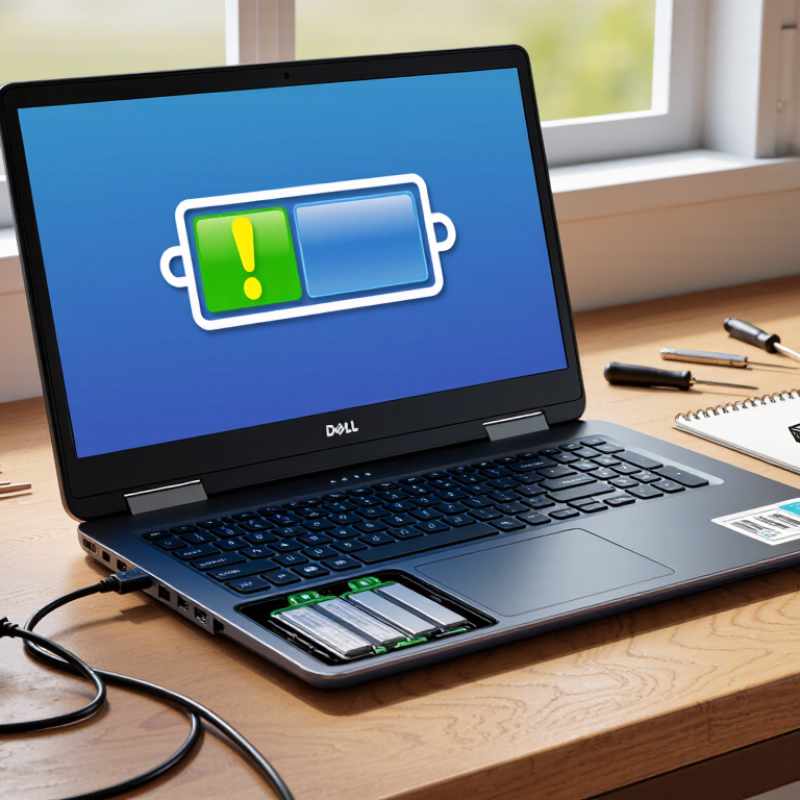
Understanding Why an Inspiron 15 Xcmrd Battery May Not Charge
When a 15-inch notebook shows “plugged in, not charging,” the battery may not be the culprit. A practical diagnosis starts with the power path: wall outlet, adapter, charging port, and internal connector. Try a verified compatible adapter and inspect the port under bright light. Dust or a loose center contact can interrupt charging. Keep the computer powered off for ten minutes, then test again. Simple, but useful.
Temperature also matters. Lithium-ion charging systems can pause when cells become too hot or cold. Move the notebook from a blanket to a hard, ventilated surface. Close demanding applications and check whether charging resumes below full capacity. Battery University’s BU-808 technical guidance explains that many lithium-ion packs reach roughly 80% capacity after 300–500 full cycles. Design and heat can change that range. The estimate is not a promise.
If the charge level stays fixed, check the battery-health screen and firmware diagnostics. Look for design capacity, full-charge capacity, cycle count, and adapter recognition. A sharp capacity drop suggests wear. No adapter detection points toward the charger, port, or charging circuit. Swelling, a lifted trackpad, chemical odor, or unusual heat requires immediate shutdown and professional service. Do not puncture or open the pack. The 2024 Global E-waste Monitor reports 62 million tonnes of e-waste in 2022, with only 22.3% formally collected and recycled. Responsible replacement matters, yet careless disposal still happens. I would recheck the adapter before ordering a battery; that small step prevents an expensive wrong diagnosis.
Why a Laptop Battery May Not Charge
Charging problems are commonly linked to the power connection, battery temperature, charge limits, or battery health. The chart shows practical diagnostic conditions to check before replacing hardware.
A battery normally requires a recognized power source, a safe operating temperature, a connected battery, and a charge level below its configured limit. If all conditions are correct but charging still fails, inspect the adapter, charging port, battery contacts, and battery health report.
Checking the Charger, Power Port, and Battery Connections
Why Is My Inspiron 15 Xcmrd Battery Not Charging?
A non-charging laptop often has a simple connection problem. Check the charger before blaming the battery. Inspect the cable for cuts, bent pins, or unusual heat. A loose adapter can power the laptop but fail to charge it. That confusing symptom is common.
Next, examine the power port with a flashlight. Dust may block the plug from sitting fully inside. Gently clean the area with compressed air. Never force the connector. If charging starts only when the cable bends, the port or internal solder joint may be damaged. Disconnect the charger, remove the battery if possible, and reseat its connector. Battery University’s BU-808 technical guide explains that lithium-ion batteries commonly lose capacity after about 300–500 full cycles. Heat can accelerate that decline. The IEC 61960-3 standard also emphasizes controlled testing for rechargeable cells, so battery readings are not always perfect in daily use.
Tips: Try another compatible charger with the correct voltage and wattage. Check the charging icon after restarting. If the battery remains at one percentage, compare the operating system reading with a hardware diagnostic. I sometimes overlook the wall outlet itself. Test it with another device. Also, a damaged battery may swell slightly, lift the keyboard, or create a chemical smell. Stop using it immediately if that happens. A professional inspection is safer than repeated plugging.
Testing Windows Power Settings and Battery Health
Why Is My 15-Inch Laptop Battery Not Charging?
Testing Windows power settings can reveal whether charging failure comes from software or hardware. I begin by opening Settings, selecting System, then Power & battery. I check the active power mode and temporarily choose Balanced. A battery charge limit may also be enabled, stopping charging near 80 percent. This feature protects long-term battery health, but it can look like a fault.
I then inspect the battery icon while connecting the charger. It should show “plugged in” or a similar charging message. If the percentage stays unchanged, I restart the computer and test another wall outlet. Simple checks matter. I also review advanced power options and disable unusual sleep or hibernation settings during testing. Windows updates can change these preferences without making the change obvious.
Battery health needs separate attention. In Command Prompt, I generate a battery report and compare design capacity with full-charge capacity. A large gap suggests natural wear, not a Windows setting. The report may also show repeated charging interruptions. I have seen readings that looked alarming but became normal after a full restart, so I avoid judging from one result. If the battery becomes hot, swollen, or unusually slow to charge, I stop testing and seek qualified service. Temperature and physical condition are easy to overlook.
Updating Drivers, BIOS, and System Power Management
When a laptop battery refuses to charge, the problem may not be physical. Outdated drivers, firmware, or power settings can interrupt charging. I have seen the battery icon show “plugged in” while the percentage slowly falls. That detail matters.
Start by installing the latest chipset, battery, and power-management drivers from the computer manufacturer’s official support page. Restart after each major update. Then check for a BIOS update. Keep the charger connected during the process, and never force a shutdown. A failed firmware update can create a more serious problem. I once skipped a restart and wrongly assumed the driver had failed. That was my mistake.
Tips: Open the operating system’s power settings and review battery charge limits. Some systems stop charging near 80 percent to protect battery health. Disable battery-saver restrictions temporarily while testing. Check Device Manager for warning symbols beside battery devices. If needed, uninstall the battery driver and restart; the system should reinstall it automatically. Also test another compatible charger and wall outlet. Do not rely on one symptom. A charging fault can come from software, temperature, cable damage, or battery wear. If updates change nothing, record the battery percentage, charging behavior, and error messages before seeking qualified service.
Determining When Battery Replacement or Professional Repair Is Needed
Why Is My Inspiron 15 Xcmrd Battery Not Charging?
When a laptop battery stops charging, replacement is not always the answer. Check the charging cable, power socket, and charging port for looseness or visible damage. Then review the battery health report in the operating system. A battery that holds little charge, drops from 40% to 5%, or shuts down unexpectedly may be reaching the end of its service life. Swelling, unusual heat, or a chemical smell requires immediate shutdown. Do not press, puncture, or open the battery.
Professional repair is safer when basic checks fail. A technician can test the adapter, charging circuit, battery connector, and system board with suitable equipment. This matters because a failed charging circuit can imitate a dead battery. Replacing the battery alone might waste money. A common diagnostic mistake is trusting one symptom. I would check charging behavior under different power conditions before choosing parts.
Tips: Record the battery percentage after thirty minutes of charging. Try another compatible charger only if its voltage and connector specifications match. Keep important files backed up before testing. If the laptop becomes hot near the battery area, stop using it. Even experienced users can miss a damaged internal connector, so professional inspection is sensible when symptoms remain unclear.
Why Is My Inspiron 15 Xcmrd Battery Not Charging? - Determining When Battery Replacement or Professional Repair Is Needed
| Observed Condition | Likely Cause | Useful Check | Typical Interpretation | Recommended Action | Priority |
|---|---|---|---|---|---|
| The charging indicator does not turn on | Power adapter, wall outlet, charging connector, or DC-in circuit problem | Test a known-working outlet, inspect the cable for cuts, and check whether the connector feels loose or unusually hot | No indicator usually means the computer is not receiving stable input power | Try a compatible adapter with the correct voltage and wattage. If there is still no response, professional inspection may be required | Repair Check |
| The computer works only when connected to the adapter | Battery failure, deeply discharged cells, or a disconnected internal battery cable | Shut down the computer, disconnect external power, and observe whether it starts or remains powered by the battery | A system that immediately loses power often has a battery that can no longer hold usable charge | Review battery health information. Replacement is generally appropriate if the battery is detected but has very low capacity | Replacement Likely |
| Battery percentage remains at 0% or 1% | Severely degraded cells, charging-control fault, or an inaccurate battery gauge | Restart the computer, check the operating system battery report, and compare the design capacity with the full-charge capacity | A full-charge capacity below approximately 80% of design capacity indicates noticeable aging; much lower capacity indicates advanced wear | Replace the battery when capacity is very low or runtime is substantially reduced. Seek repair if a new battery shows the same behavior | Replacement Likely |
| Charging stops at about 80% | Battery-protection or conservation setting limiting the maximum charge | Review the computer's battery-care or charge-limit settings | A deliberate charge limit can reduce long-term lithium-ion battery stress and is not necessarily a fault | Disable the limit only when a full charge is needed. Re-enable it for regular plugged-in use if desired | Normal Setting |
| Battery charges very slowly | Low-power adapter, heavy system load, high temperature, damaged cable, or battery aging | Close demanding applications, improve ventilation, and verify that the adapter meets the computer's required power rating | Charging may slow or pause when power consumption is close to the adapter's available output | Use the correct adapter, cool the computer, and replace the battery if slow charging is accompanied by poor runtime or sudden shutdowns | Check First |
| Charging works only when the cable is held at a certain angle | Worn cable plug, damaged charging socket, or loose internal connection | Carefully observe whether slight movement interrupts the charging indicator; do not force or repeatedly bend the connector | Intermittent charging points to a physical connection problem rather than ordinary battery wear | Stop stressing the connector and arrange professional repair. Continued use can worsen port or board damage | Professional Repair |
| The battery is swollen, the case is lifting, or the touchpad is raised | Internal lithium-ion cell failure and gas buildup | Visually inspect the case without pressing, puncturing, or attempting to flatten the battery | Swelling is a safety hazard and is not corrected by software resets or calibration | Turn off the computer, disconnect external power if safe, avoid using or charging it, and obtain qualified battery service promptly | Urgent Safety Issue |
| The battery is not detected by the operating system | Disconnected battery, failed battery-management electronics, firmware issue, or motherboard fault | Check battery information in system settings and firmware diagnostics, if available | No detected battery makes software-only troubleshooting less likely to succeed | After a safe restart, seek professional diagnosis if the battery remains absent. Do not open the case if the battery is swollen | Professional Repair |
| Battery runtime has fallen sharply after normal use | Normal lithium-ion aging, repeated heat exposure, or high cycle count | Compare current full-charge capacity with the original design capacity and note unexpected shutdowns | Reduced capacity is expected over time; rapid drops, shutdowns, or extreme heat suggest replacement is warranted | Back up important data and replace the battery with a compatible, safety-certified part | Replacement Recommended |
| The computer shuts down immediately after unplugging | Battery cannot deliver sufficient current, battery connection fault, or power-management failure | Check whether the battery percentage changes normally and whether the system reports a battery health warning | Immediate shutdown indicates that the battery is not supplying usable power | Replace the battery if it is detected and degraded. Request board-level diagnosis if a replacement battery behaves identically | Replacement or Repair |
| Battery becomes unusually hot during charging | Blocked ventilation, high workload, damaged adapter, charging-circuit fault, or failing cells | Stop intensive tasks and check for excessive heat, odor, smoke, or physical swelling | Mild warmth can be normal, but excessive heat, odor, or deformation is not normal | Disconnect power if safe, stop using the computer, and seek professional service for any safety warning signs | Urgent Safety Issue |
| Charging resumes after a complete shutdown and restart | Temporary power-management, firmware, or operating-system communication error | Perform a normal shutdown, wait briefly, reconnect the compatible adapter, and start the computer again | A one-time recovery suggests a temporary control issue rather than immediate hardware failure | Install stable system and firmware updates, monitor the battery, and seek service if the issue repeatedly returns | Monitor |
| Battery health is poor but charging and runtime remain stable | Gradual chemical aging without an immediate charging-circuit fault | Review the battery report and track runtime over several charge cycles | A health warning alone does not always mean immediate failure, but capacity will continue to decline | Plan a replacement before runtime becomes inconvenient or unexpected shutdowns begin | Plan Replacement |
| Several compatible adapters fail to charge the computer | Damaged charging port, internal power board, motherboard circuit, or battery-management system | Confirm that each adapter has the correct specifications and test whether the charging indicator responds | Failure with multiple suitable adapters makes an internal hardware problem more likely | Stop replacing adapters at random and arrange professional diagnostics | Professional Repair |